
Stop Realtime Updates
Stop Realtime Updates gives Bubble builders workflow actions and a helper page element for temporarily pausing Bubble's browser-side realtime updates. Use it when a page is subscribed to data that changes frequently, such as high-volume tables, admin grids, job queues, logs, dashboards, or repeating groups backed by busy data types.
The main use case is workload control. If a page is watching many Things or search results that update often, Bubble may keep pushing realtime changes into the browser even when the user only needs a stable snapshot. Pausing updates, auto-pausing after inactivity, unsubscribing selected Thing unique IDs, or unsubscribing elements with search-based data sources can reduce avoidable realtime refresh work in that browser context.
Quick start
Install the plugin in your Bubble app.
Open the page where you want to control realtime updates.
To pause updates after inactivity, add Auto-pause realtime updates to the page.
Set Inactive after minutes to the number of idle minutes before realtime updates should pause. This can be a dynamic number.
Leave Restore when user returns checked if activity should restart realtime updates automatically.
Preview the page and test the behavior in a browser tab.
For workflow-based control, use Pause realtime updates before the sensitive workflow steps, then use Unpause realtime updates when the page should receive live updates again.
For Thing-specific control, use Unsubscribe realtime updates for things with a list of Thing unique IDs, then use Subscribe realtime updates for things when those Things should receive live updates again.
For search-result control, set an HTML ID Attribute on the group or repeating group that has the search-based data source. Then use Unsubscribe realtime updates for elements with that element ID, and use Subscribe realtime updates for elements when the search should become live again.
When to use this
Use Stop Realtime Updates on pages where realtime freshness is less important than keeping workload and page churn under control.
Good fits:
Admin tables or data grids that show records from a type that updates many times per minute.
Operational dashboards where users review a snapshot rather than watching every row update live.
Job queues, sync logs, import logs, analytics events, webhook logs, message events, or audit trails.
Repeating groups where each visible row represents a Thing that can be updated by backend workflows or other users.
Groups or repeating groups with search-based data sources where the search result can change frequently.
Bulk-edit flows where many Things change in quick succession and the current user does not need to see each intermediate update.
Internal tools where a user may leave the page open for a long time, but does not need live updates while idle.
The plugin is most useful when a workflow or page can clearly say: "From this point until this point, this browser tab does not need realtime updates."
Element
Auto-pause realtime updates
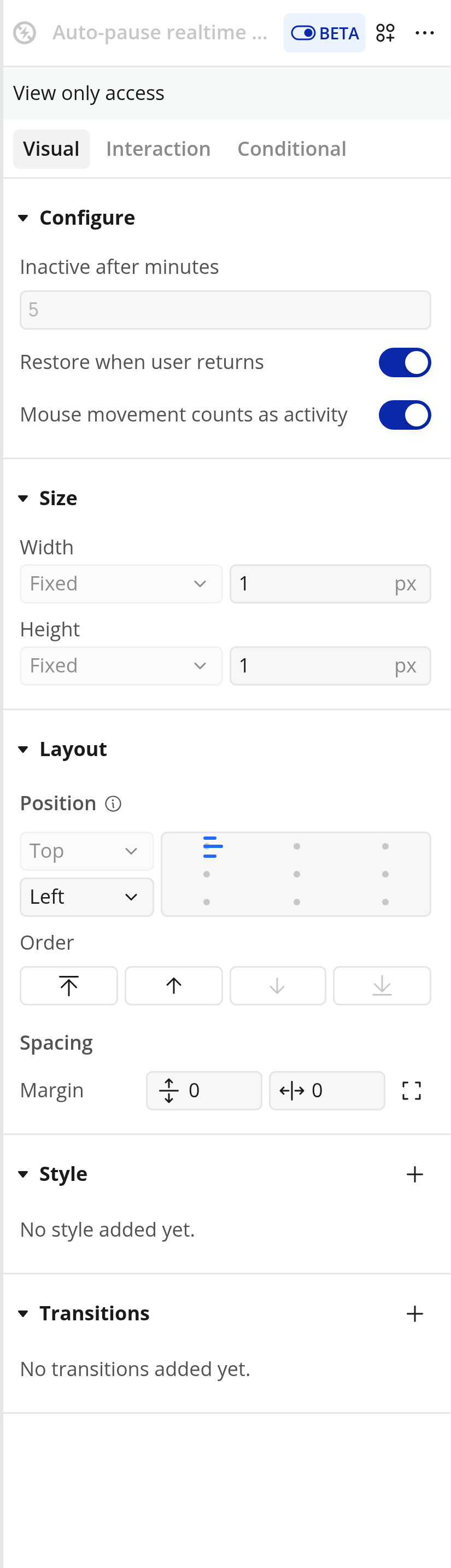
Add this element to a page when you want the page to automatically pause realtime updates after the user has been inactive. The element does not need to be visible to end users.
Fields:
Inactive after minutes: a number. Set how many idle minutes should pass before realtime updates pause. Default: 5. This field accepts a dynamic number, so you can use an app setting, option set value, current user's preference, or any other numeric expression.
Restore when user returns: yes/no. When checked, the page restarts realtime updates when the user interacts with the page again. Default: yes.
Mouse movement counts as activity: yes/no. When checked, moving the mouse resets the inactivity timer. Default: yes.
Activity includes keyboard input, clicks or pointer taps, touch input, scrolling, mouse wheel use, window focus, and returning to a visible browser tab. If Mouse movement counts as activity is checked, mouse movement also resets the timer.
If Restore when user returns is unchecked, the element pauses realtime updates after the inactivity timer, but does not automatically restart them. In that case, use Unpause realtime updates in a workflow when the page should become live again.
Actions
Pause realtime updates
Stops Bubble's realtime update connection for the current browser page. The action has no fields.
Unpause realtime updates
Restarts Bubble's realtime update connection for the current browser page. The action has no fields.
Unsubscribe realtime updates for things
Stops realtime updates for specific Things on the current browser page.
Thing unique IDs: a list of text values. Pass the unique IDs of the Things that should stop receiving realtime updates. Default: empty.
Subscribe realtime updates for things
Allows specific Things to receive realtime updates again on the current browser page.
Thing unique IDs: a list of text values. Pass the unique IDs of the Things that should resume receiving realtime updates. Default: empty.
Unsubscribe realtime updates for elements
Stops realtime updates for search-based data sources owned by specific elements on the current browser page.
Element IDs: a list of text values. Pass the HTML ID Attributes of the groups or repeating groups whose search-based data sources should stop receiving realtime updates. Default: empty.
Use this when a whole search result should stay stable, such as a repeating group table that searches for open tasks, log rows, queued jobs, messages, events, or any other type that changes frequently.
Before using this action, set an HTML ID Attribute on the target group or repeating group in Bubble's editor. Pass that exact ID, without the # prefix. The element must be on the page and its data source must have evaluated before the action runs.
Subscribe realtime updates for elements
Allows search-based data sources owned by specific elements to receive realtime updates again on the current browser page.
Element IDs: a list of text values. Pass the same HTML ID Attributes you used with Unsubscribe realtime updates for elements. Default: empty.
Example workflows
Automatically pause idle admin pages:
Add Auto-pause realtime updates to the admin page.
Set Inactive after minutes to a dynamic number, such as the current user's idle timeout preference.
Leave Restore when user returns checked.
When the user leaves the page idle, realtime updates pause. When they click, type, scroll, focus the window, or return to the tab, realtime updates resume.
Reduce realtime churn in an admin table:
When the admin opens a large table, build a list of the visible row Thing unique IDs.
Add Unsubscribe realtime updates for things and pass that list into Thing unique IDs.
Let the admin filter, sort, review, or bulk edit the table without every row refreshing live.
Add Subscribe realtime updates for things when the admin clicks a refresh button, opens a detail view that should be live, or leaves the table workflow.
Pause realtime updates during a bulk edit:
Add Pause realtime updates before the bulk edit starts.
Run the workflow steps that update or display data.
Add Unpause realtime updates after the work is complete.
Temporarily stop updates for selected records:
Build a list of Thing unique IDs from the records you want to hold steady.
Add Unsubscribe realtime updates for things and set Thing unique IDs to that list.
Run the workflow that should not be interrupted by live changes for those Things.
Add Subscribe realtime updates for things with the same list when updates should resume.
Temporarily stop updates for a search result:
Set an HTML ID Attribute on the group or repeating group that has the search-based data source.
Add Unsubscribe realtime updates for elements and set Element IDs to that HTML ID Attribute.
Let the user review, filter, scroll, or bulk edit without the search result changing live.
Add Subscribe realtime updates for elements with the same Element IDs when the search result should become live again.
Troubleshooting
Realtime updates still appear:
Make sure the workflow action or auto-pause timer runs before the update you are trying to suppress.
If using the Thing-specific action, confirm Thing unique IDs contains actual Bubble unique IDs, not display names or slugs.
If using the element-specific action, confirm Element IDs contains the target element's HTML ID Attribute, not the element name shown in the Bubble editor.
Make sure the target element is visible or otherwise loaded on the page, and that its data source has evaluated before the action runs.
Refreshing the page creates a new page context, so run the action again when the page loads if the behavior should apply immediately.
If using Auto-pause realtime updates, confirm Inactive after minutes evaluates to a number greater than zero. Empty, zero, or invalid values fall back to 5 minutes.
The page stops updating entirely:
Check whether Pause realtime updates ran without a later Unpause realtime updates action.
Check whether Auto-pause realtime updates paused the page and Restore when user returns is unchecked.
Add Unpause realtime updates to the end of the workflow or to a cleanup workflow that runs after the paused section.
A Thing does not resume updating:
Run Subscribe realtime updates for things with the same unique ID.
If you paused the whole page, also run Unpause realtime updates.
A search result does not resume updating:
Run Subscribe realtime updates for elements with the same HTML ID Attribute.
If you paused the whole page, also run Unpause realtime updates.
If the element was removed and redrawn by page navigation or conditional UI, run the unsubscribe/subscribe action again after the element is back on the page.
The auto-pause element does not appear on the page:
That is expected. The element is a helper element for page behavior, not a visible user interface.
Limits
This plugin is web-only.
The actions and element affect the current browser page context only.
It does not reduce the workload used by database writes, backend workflows, searches, or API calls that still run. It only helps with avoidable realtime update work for browser tabs where updates have been paused or selected Things have been unsubscribed.
Element-specific actions need the target element's HTML ID Attribute and work best on groups or repeating groups with search-based data sources.
Refreshing or navigating away from the page resets the browser context.
This is not a security feature. It does not change privacy rules, database permissions, or what a user is allowed to access.
The Thing-specific actions need Bubble unique IDs. They do not accept slugs, labels, or arbitrary field values.