
Better Input Validation Templates
Better Input Validation Templates formats Bubble inputs as users type, then publishes whether the current value is complete and valid for the selected template. Use it for common structured inputs such as email, URLs, dates, times, phone numbers, postal codes, card-style fields, CPF/CNPJ, CEP, IBAN, UUIDs, IP addresses, colours, and other fixed input formats.
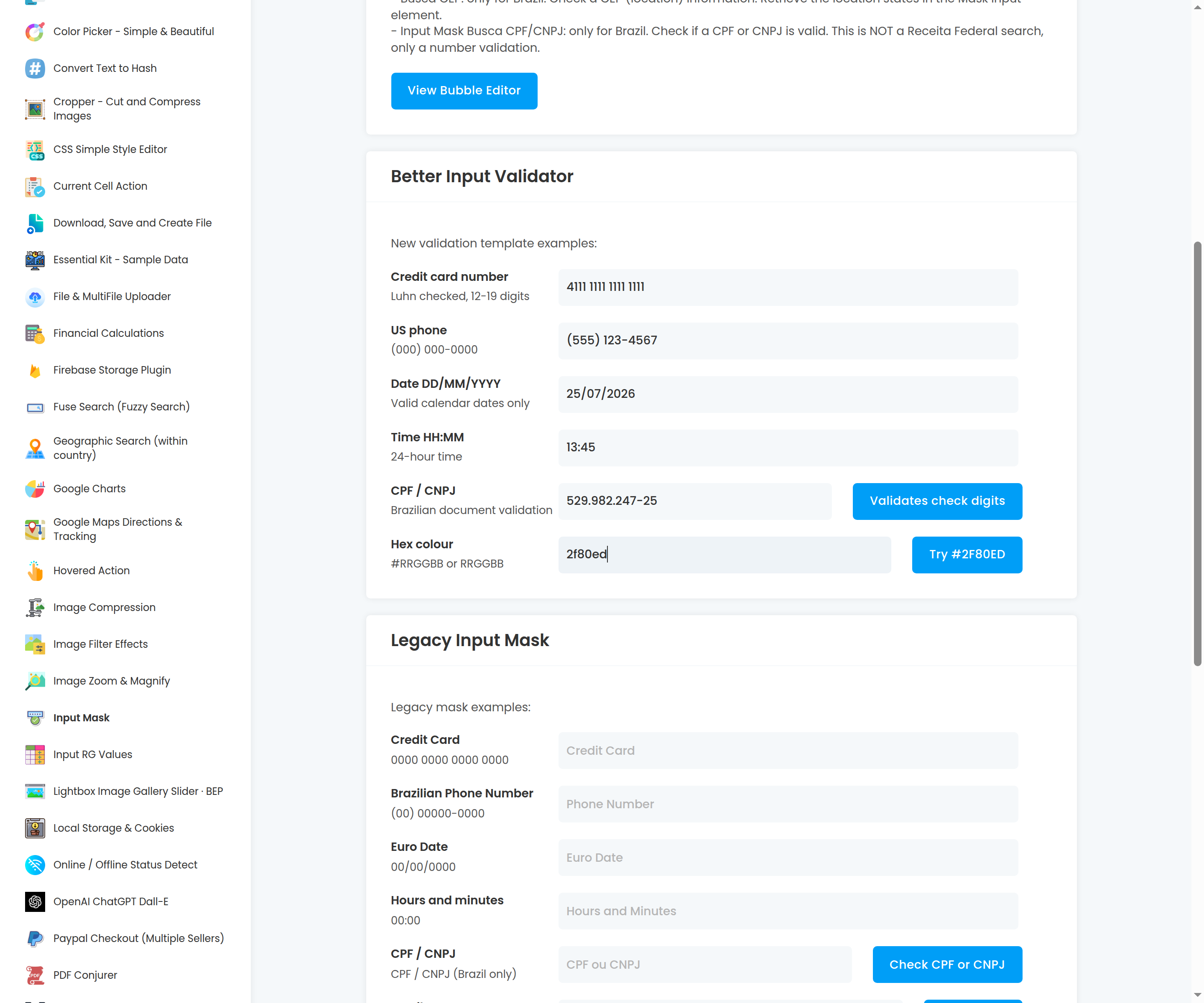
Quick start
Install the plugin in your Bubble app.
In Settings > General, enable Expose the option to add an ID attribute to HTML elements.
Add a normal Bubble Input to the page.
Give that input an ID attribute, such as
phone_input.Add the Better Input Validator element to the same page.
Set Input ID attribute to the ID of the input you want to format.
Choose a Template.
Preview the page and type into the input.
The plugin element does not replace Bubble's Input element. It attaches formatting and validation behaviour to an existing input by ID attribute.
Better Input Validator element
Use Better Input Validator for new apps and new workflows.
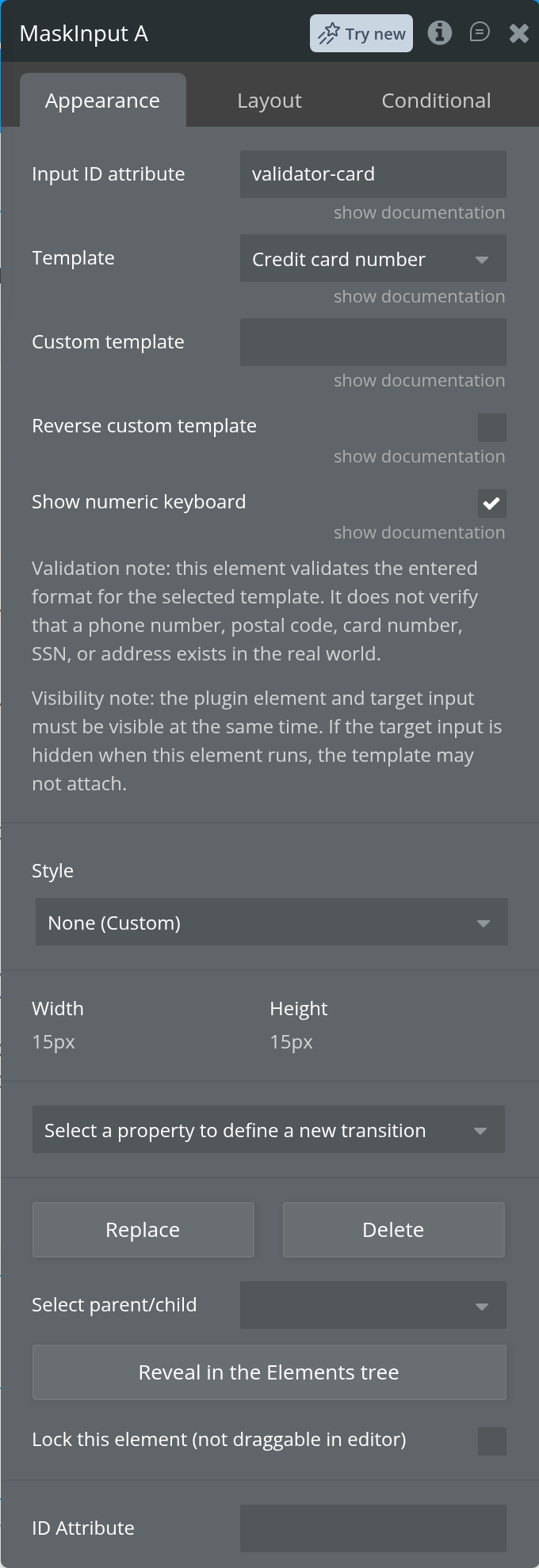
Input ID attribute
The ID attribute of the Bubble input that should receive the template.
This field is required. The target input must exist on the same page and must be visible when the plugin element runs.
Template
Choose the format to apply to the target input.
Options:
CustomEmailURLDate DD/MM/YYYYDate MM/DD/YYYYDate YYYY-MM-DDTime HH:MM 24-hourTime HH:MM:SS 24-hourCredit card numberCredit card expiry MM/YYCVV 3 digitsCVV 4 digitsUS phoneUS ZIP codeUS ZIP+4US SSNCanada postal codeUK postcodeUK sort codeIBANIPv4 addressIPv6 addressMAC addressHex colorUUIDCPFCNPJCPF/CNPJCEPBrazil phone
Default: Custom.
The template validates the entered format. It does not verify that a phone number, postal code, card number, IBAN, URL, SSN, address, IP address, or other value exists in the real world.
For CPF, CNPJ, and CPF/CNPJ, the validator checks the Brazilian document check digits.
For IBAN, the validator checks the IBAN structure and checksum. It does not verify that the bank account exists.
For URL, the validator accepts http:// and https:// URLs, and also accepts normal domains without a scheme, such as example.com/path. It does not check whether the page is reachable.
For IPv6 address, the validator supports full and compressed IPv6 addresses, such as 2001:db8::1 and ::1.
Custom template
Used when Template is Custom.
Template characters:
0: required digit9: optional digitS: letterA: letter or numberH: hexadecimal character
Common examples:
00/00/0000for dates00:00for time(000) 000-0000for US phone numbers00000-000for Brazilian CEPAAAA-0000for mixed letter/number codes
Default: blank.
Reverse custom template
Applies a custom template from right to left.
This only affects Template set to Custom.
Default: unchecked.
Show numeric keyboard
Sets the target input type to tel, so mobile browsers show a numeric keyboard.
Use this for numeric templates such as phone, date, time, card, CPF/CNPJ, or CEP. Leave it unchecked for templates with letters or punctuation, such as Email, URL, Canadian postal codes, UK postcodes, IBAN, IPv6 addresses, MAC addresses, hex colours, and UUIDs.
Default: unchecked.
Exposed states
The Better Input Validator element exposes these states:
Input value: the formatted value currently shown in the target input.
Raw value: the input value without template punctuation such as spaces, dashes, slashes, or brackets. For validation-only templates such as Email, URL, IBAN, UK postcode, and IPv6 address, this is the normalized text value used for validation.
Template is complete:
yeswhen the current input value has enough characters for the selected template.Template is valid:
yeswhen the current input value is complete and passes the selected template's format validation.Selected template: the template currently configured on this element.
Events
The Better Input Validator element can trigger these workflow events:
Input value changed: the target input value changed after the validator attached.
Input became valid: the target input changed from invalid to valid.
Input became invalid: the target input changed from valid to invalid.
Example workflows
Save only when a date is valid
Add a Bubble Input to the page.
Set its ID attribute to
date_input.Add the Better Input Validator element.
Set Input ID attribute to
date_input.Set Template to
Date DD/MM/YYYY.In your save workflow, only continue when Better Input Validator's Template is valid is
yes.
Validate an email before continuing
Add a Bubble Input to the page.
Set its ID attribute to
email_input.Add the Better Input Validator element.
Set Input ID attribute to
email_input.Set Template to
Email.Only continue when Template is valid is
yes.
Validate an IBAN
Add a Bubble Input to the page.
Set its ID attribute to
iban_input.Add the Better Input Validator element.
Set Input ID attribute to
iban_input.Set Template to
IBAN.Use Template is valid before saving or submitting the value.
Format and validate a CPF
Add a Bubble Input to the page.
Set its ID attribute to
cpf_input.Add the Better Input Validator element.
Set Input ID attribute to
cpf_input.Set Template to
CPF.Use Template is valid before saving or continuing.
Português: para CPF e CNPJ, o novo elemento formata o valor e valida os dígitos verificadores. Isso não consulta a Receita Federal.
Use a custom template
Add a Bubble Input to the page.
Set its ID attribute to
code_input.Add the Better Input Validator element.
Set Input ID attribute to
code_input.Set Template to
Custom.Set Custom template to
AAAA-0000.
Legacy element
Existing apps may already use the older Input Mask - Legacy element. That element is still included for backwards compatibility, especially for Brazilian users relying on the old CPF/CNPJ, phone, CEP lookup, and captured value behaviours.
Use Input Mask - Legacy only when maintaining an existing page that already depends on it. For new work, use Better Input Validator.
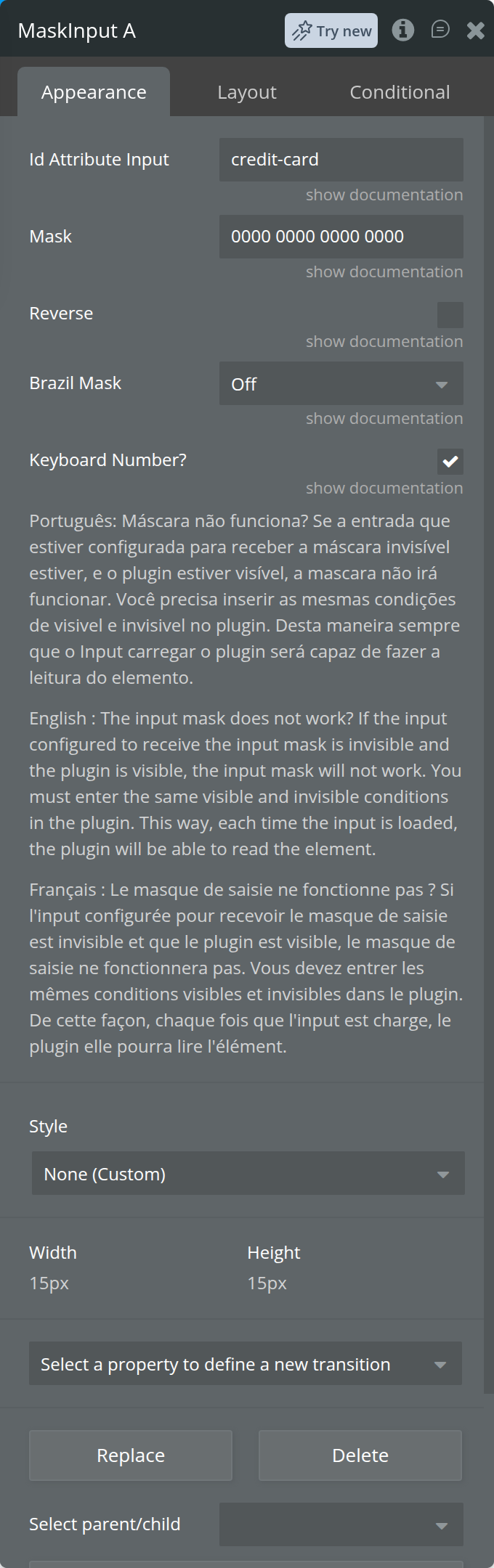
Legacy fields
The legacy element keeps its original behaviour:
Input ID attribute: target input ID.
Custom mask: old custom mask field.
Reverse mask: applies the old custom mask from right to left.
Preset mask:
CPF/CNPJ,Landline/Mobile, orOff.Show numeric keyboard: sets the target input type to
tel.
Legacy element actions
The legacy element also keeps:
Lookup CEP: looks up a Brazilian CEP using ViaCEP and publishes address states.
Capture input value: reads another input by ID attribute and publishes it to the legacy Input value state.
Validate CPF/CNPJ action
The standalone Validate CPF/CNPJ workflow action is still available.
Field:
CPF/CNPJ value: CPF or CNPJ to validate. Formatting characters such as dots, slashes, and dashes are ignored.
Return value:
CPF/CNPJ is valid:
yeswhen the value passes CPF or CNPJ validation, otherwiseno.
Português: essa ação valida CPF ou CNPJ pelos dígitos verificadores. Ela ignora pontos, barras e hífens. Valores com tamanho diferente de CPF ou CNPJ retornam no.
Troubleshooting
The template does not attach:
Make sure the target Bubble input has an ID attribute.
Make sure Input ID attribute exactly matches the target input's ID.
Make sure the plugin element and the target input are visible at the same time.
If the input is inside a hidden group or popup, show that container before expecting the template to attach.
The value is complete but not valid:
Check whether the selected template has stricter validation than character count.
Dates, times, credit card numbers, IPv4 addresses, IPv6 addresses, CPF, CNPJ, IBAN, UK postcodes, Canadian postal codes, email addresses, and URLs have extra format checks.
For card numbers, Template is valid checks the Luhn number only. It does not confirm that the card is active or chargeable.
For IBAN, Template is valid checks the IBAN checksum only. It does not confirm that the bank account exists.
For URLs, Template is valid checks the URL format only. It does not confirm that the page exists.
For CPF/CNPJ, Template is valid checks the document check digits only. It does not query a government database.
The wrong template is used:
Check Template.
If Template is not
Custom, Custom template is ignored.Use Reverse custom template only with
Custom.
The numeric keyboard does not appear on mobile:
Check Show numeric keyboard.
Make sure the target input is the one the user is actually focusing.
Browser keyboard behaviour can vary by device and operating system.
Limits
This plugin is web-only.
The template is applied in the user's browser to an existing Bubble input.
The plugin needs the target input's ID attribute.
The target input and plugin element must be visible at the same time for the template to attach.
Format validation is not the same as identity, address, payment, reachability, deliverability, or bank-account verification.
The plugin does not change Bubble privacy rules or server-side validation. Use workflow validation before saving important data.