
Better Calendar Time Slots
Better Calendar Time Slots helps you build custom calendar and scheduling interfaces in Bubble. Use it to generate month grids, week rows, appointment time slots, year lists, and age values from dates.
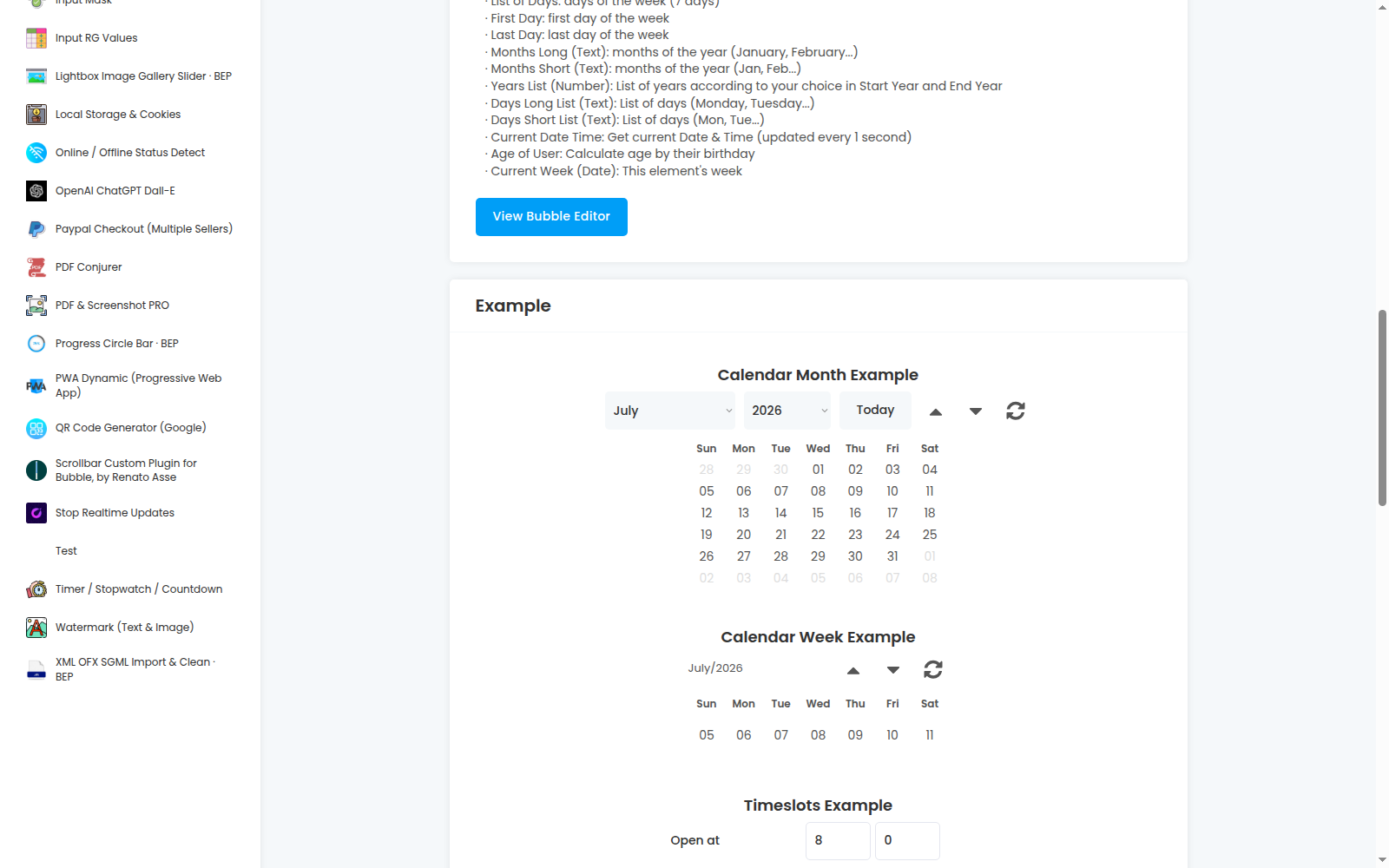
Quick start
Install the plugin in your Bubble app.
Add the
Calendar monthelement to the page.Create a repeating group with type of content
date.Set the repeating group's data source to
Calendar month's List of days.Use seven columns and six rows when you want a standard 42-day month grid.
Add text elements inside the repeating group cells to display each cell's date.
Add workflows that run the
Next,Previous, orResetelement actions when users navigate the calendar.
For a weekly calendar, use the Calendar week element instead, set the repeating group's data source to Calendar week's List of days, and use seven columns with one row.
For scheduling slots, add the Calendar time slots element, set the start time, end time, and interval, then display Calendar time slots's Time slots in a repeating group.
Calendar month element
Use Calendar month when you need a complete month grid for a custom calendar UI.
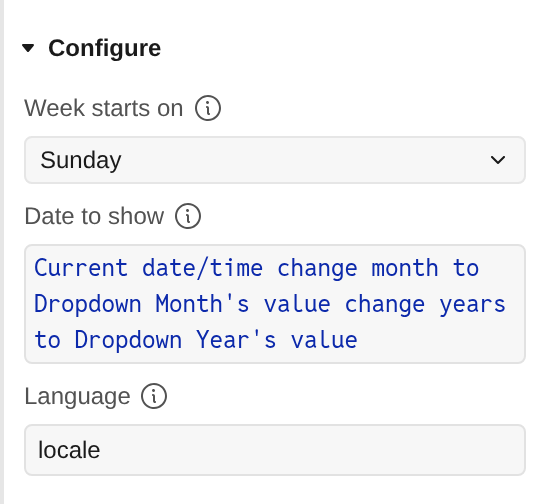
Fields
Week starts on: Choose whether the month grid starts onSundayorMonday. Default:Sunday.Date to show: Optional date. The calendar opens to the month that contains this date. Leave it empty to use the current month.Language: Text locale for month and weekday names. Uselocalefor the browser/default locale, or enter a locale code such asfr-FR. Default:locale.
States
List of days: A list of 42 dates for the month grid, including leading and trailing dates from adjacent months.Months long: Localized full month names, such asDecember.Months short: Localized short month names, such asDec.Weekdays short: Localized short weekday names, such asSun.Weekdays long: Localized full weekday names, such asSunday.Current date and time: The current date and time, refreshed every second.Current month: The last date of the currently displayed month.Month numbers: Numbers1through12.
Actions
Next: Moves the calendar to the next month. This action has no properties.Previous: Moves the calendar to the previous month. This action has no properties.Reset: Resets the calendar to the month that contains the selected date, or to the current month when no date is set.
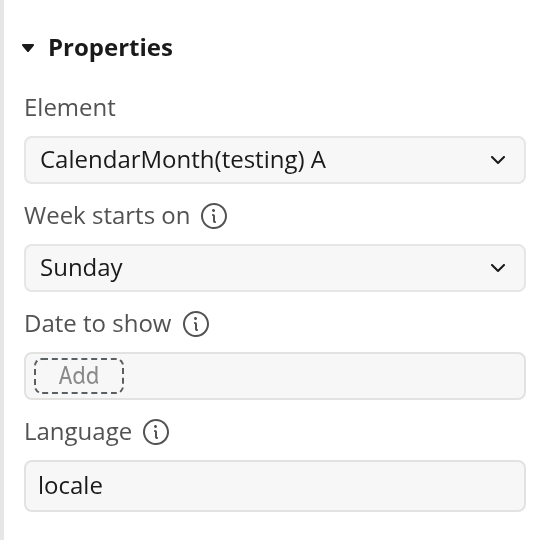
Reset fields:
Week starts on: Choose whether the month grid starts onSundayorMonday. Default:Sunday.Date to show: Optional date. The calendar resets to the month that contains this date. Leave it empty to use the current month.Language: Text locale for month and weekday names. Uselocalefor the browser/default locale, or enter a locale code such asfr-FR. Default:locale.
Calendar week element
Use Calendar week when you need the seven dates in the displayed week.
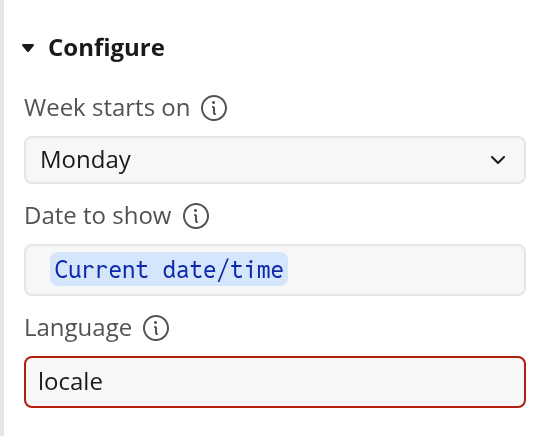
Fields
Week starts on: Choose whether the week starts onSundayorMonday. Default:Monday.Date to show: Optional date. The calendar opens to the week that contains this date. Leave it empty to use the current week.Language: Text locale for month and weekday names. Uselocalefor the browser/default locale, or enter a locale code such asfr-FR. Default:locale.
States
List of days: The seven dates in the currently displayed week.First day: The first date in the currently displayed week.Last day: The last date in the currently displayed week.Months long: Localized full month names, such asDecember.Months short: Localized short month names, such asDec.Weekdays short: Localized short weekday names, such asSun.Weekdays long: Localized full weekday names, such asSunday.Current date and time: The current date and time, refreshed every second.Month numbers: Numbers1through12.Current week: The date used as the anchor for the currently displayed week.
Actions
Next: Moves the calendar to the next week. This action has no properties.Previous: Moves the calendar to the previous week. This action has no properties.Reset: Resets the calendar to the week that contains the selected date, or to the current week when no date is set.
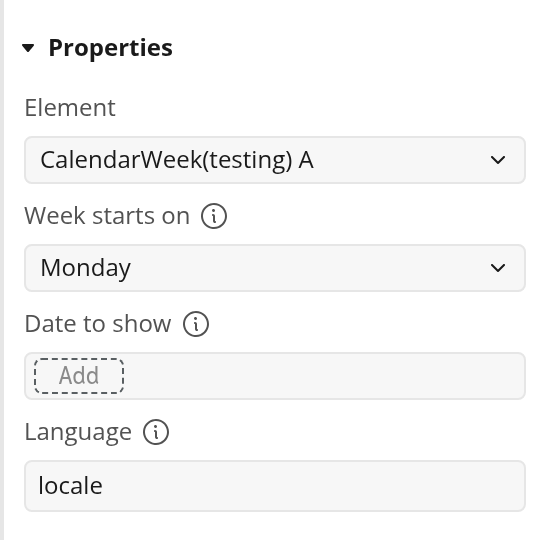
Reset fields:
Week starts on: Choose whether the week starts onSundayorMonday. Default:Monday.Date to show: Optional date. The calendar resets to the week that contains this date. Leave it empty to use the current week.Language: Text locale for month and weekday names. Uselocalefor the browser/default locale, or enter a locale code such asfr-FR. Default:locale.
Calendar time slots element
Use Calendar time slots to generate a list of dates between a start and end date/time. It can also generate a simple list of years for dropdowns or filters.
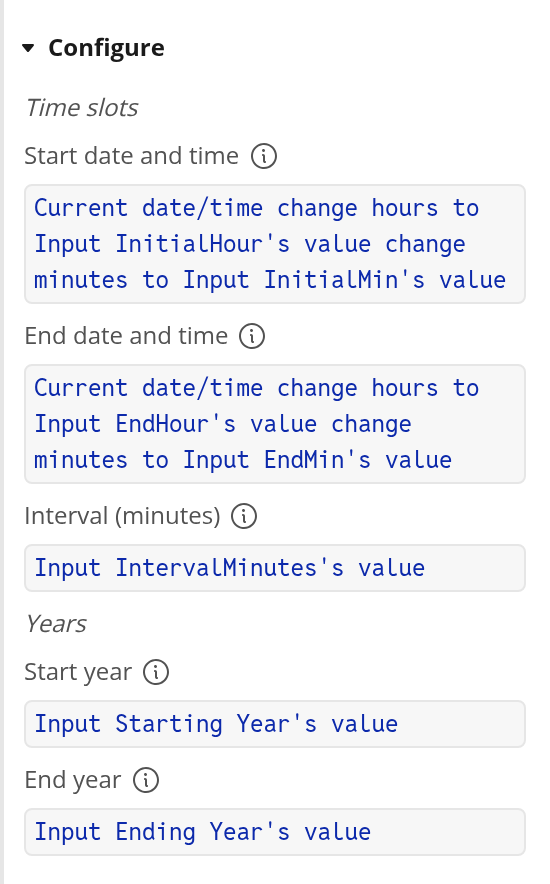
Fields
Start date and time: Optional date. The first date and time to include in the generated time slots.End date and time: Optional date. The last date and time for the generated time slot range.Interval (minutes): Optional number. The number of minutes between generated slots. Default:15. This must be greater than0.Start year: Optional number. The first year to include, such as2018.End year: Optional number. The last year to include, such as2030. It must be the same as or later thanStart year.
States
Time slots: Generated date/time values betweenStart date and timeandEnd date and time, spaced byInterval (minutes).Years: Generated numbers betweenStart yearandEnd year, inclusive.
Notes
If the end date/time does not land exactly on the interval, the plugin still includes the end date/time as the final slot.
If the start date/time or end date/time is missing, invalid, or the end is earlier than the start,
Time slotsis empty.If
Interval (minutes)is0, negative, blank, or invalid,Time slotsis empty.If either year is missing or
End yearis earlier thanStart year,Yearsis empty.
Calculate age from date of birth element
Use Calculate age from date of birth when you need a person's age in full years from a date input.
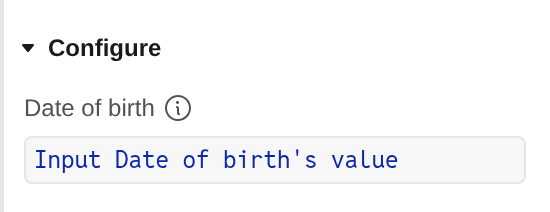
Field
Date of birth: Required date. The date used to calculate age in full years.
State
Age: The calculated age in full years.
Notes
The age updates when the
Date of birthvalue changes.If the date is missing, invalid, or in the future,
Ageis empty.
Example workflows
Build a monthly booking calendar
Add
Calendar monthto the page.Set
Week starts onto match your app's calendar convention.Create a repeating group with type of content
date.Set the data source to
Calendar month's List of days.Add a cell condition or text format for dates that are not in
Calendar month's Current month.Add buttons or icons for previous and next navigation.
In the previous button workflow, run
Previouson theCalendar monthelement.In the next button workflow, run
Nexton theCalendar monthelement.To jump back to the current month, run
Resetand leaveDate to showempty.
Generate appointment times
Add
Calendar time slotsto the page.Set
Start date and timeto the opening date/time.Set
End date and timeto the closing date/time.Set
Interval (minutes)to the booking duration, such as30.Create a repeating group with type of content
date.Set the data source to
Calendar time slots's Time slots.Format each date as a time, such as
08:30.
Troubleshooting
The repeating group is empty:
Check that the repeating group's type of content is
date.Check that the data source uses the plugin element's exposed state.
For time slots, make sure
Start date and time,End date and time, andInterval (minutes)are valid.For time slots, make sure the end date/time is not earlier than the start date/time.
The calendar starts on the wrong weekday:
Check
Week starts onon the element.If you run
Reset, checkWeek starts onon the action too.
Month or weekday names are in the wrong language:
Check
Language.Use
localefor the user's browser/default locale.Use a valid locale code, such as
en-US,en-GB, orfr-FR, when you need a specific language.If the browser does not support the locale code, it falls back to the default locale.
The age is empty:
Make sure
Date of birthis set.Make sure the value is a date, not text.
Future dates return an empty value.
Limits
This plugin is web-only.
The calendar elements publish date lists and labels. You still design the visible calendar UI with Bubble repeating groups, text, styles, and workflows.
The plugin does not store bookings, check availability, handle time zones across users, or prevent double bookings by itself.
Time slots are generated in the user's browser from the dates you provide.
Use Bubble privacy rules and workflow validation for any real booking or scheduling data.