
Better Native Camera & Webcam
Better Native Camera lets a Bubble web app open a mobile device camera, use a computer webcam on supported desktop browsers, compress the captured photo, then preview, download, or upload it to Bubble storage.
Quick start
Add the Native camera element to the page.
Add a workflow that runs Open camera.
Choose the preferred camera, image format, and image quality.
Enable Allow computer webcam when desktop users should take a photo with their computer webcam instead of opening the file picker.
Use the Photo captured event to show the Preview image state, download the image, or run Save captured photo.
If you save the image, use the Photo saved event and Saved image URL state to store the file URL in your database.
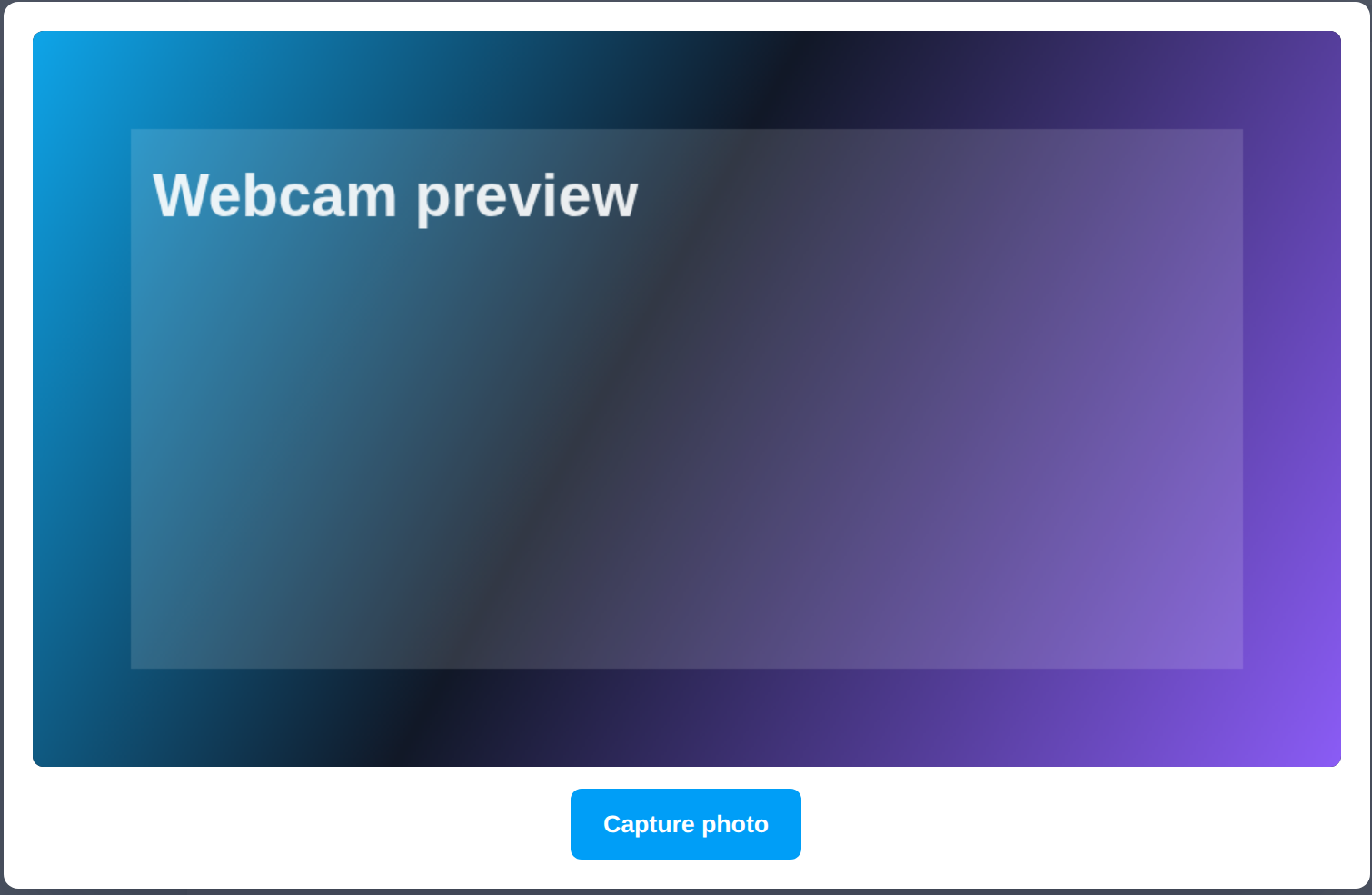
On supported mobile browsers, Open camera asks the browser for the front or rear device camera. On desktop browsers, enabling Allow computer webcam shows a webcam preview with a single capture button. If that option is off, or the browser does not support webcam access, desktop browsers use the normal image picker flow.
Element
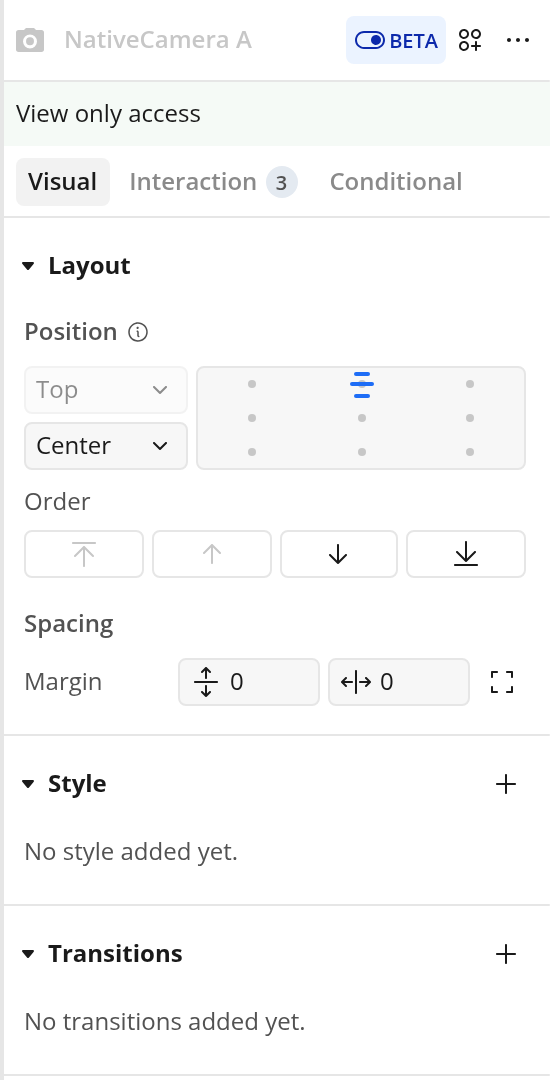
Add Native camera to any page where users need to capture an image. The element itself is small and exists mainly so workflows can target it and read its states.
Exposed states
Preview image: The captured image as a Base64 data URL after Open camera finishes.
File size after compression (KB): The compressed image size in kilobytes after Open camera finishes.
Saved image URL: The Bubble storage URL after Save captured photo uploads the image.
Error message: The latest camera, compression, download, or upload error.
File size before compression (KB): The original selected image size in kilobytes before compression.
Uses JPEG fallback: Whether the browser used the JPEG fallback behavior.
Events
Use these events to continue the workflow after the plugin finishes each step.
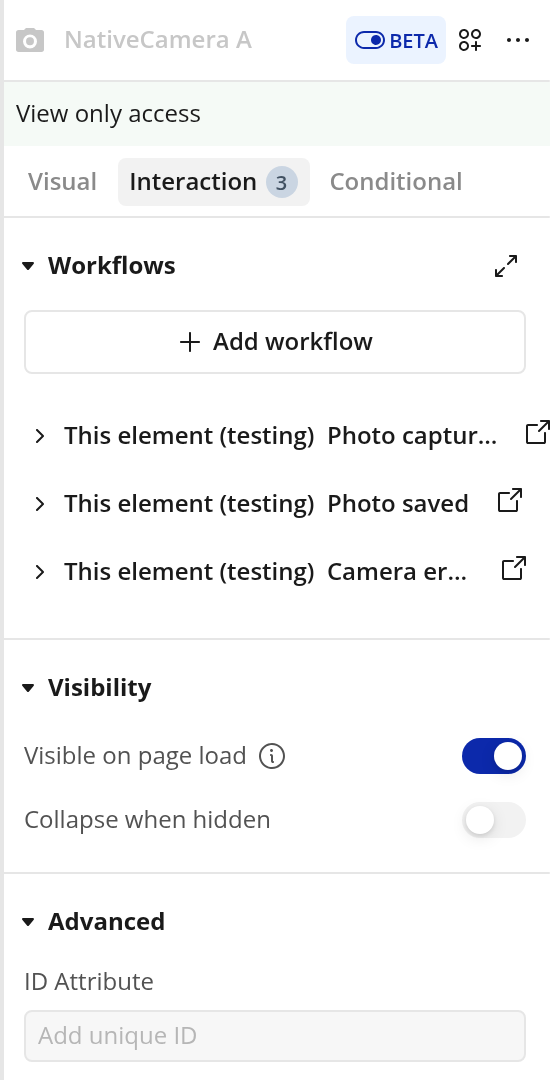
Photo captured: Runs after Open camera captures and compresses an image.
Photo saved: Runs after Save captured photo uploads the image and the Saved image URL state is available.
Camera error: Runs when a camera, compression, download, or upload action reports an error.
Actions
Open camera
Runs on a Native camera element. It opens the device camera, computer webcam, or image picker, compresses the selected image, publishes the preview and file-size states, then triggers Photo captured.
Fields:
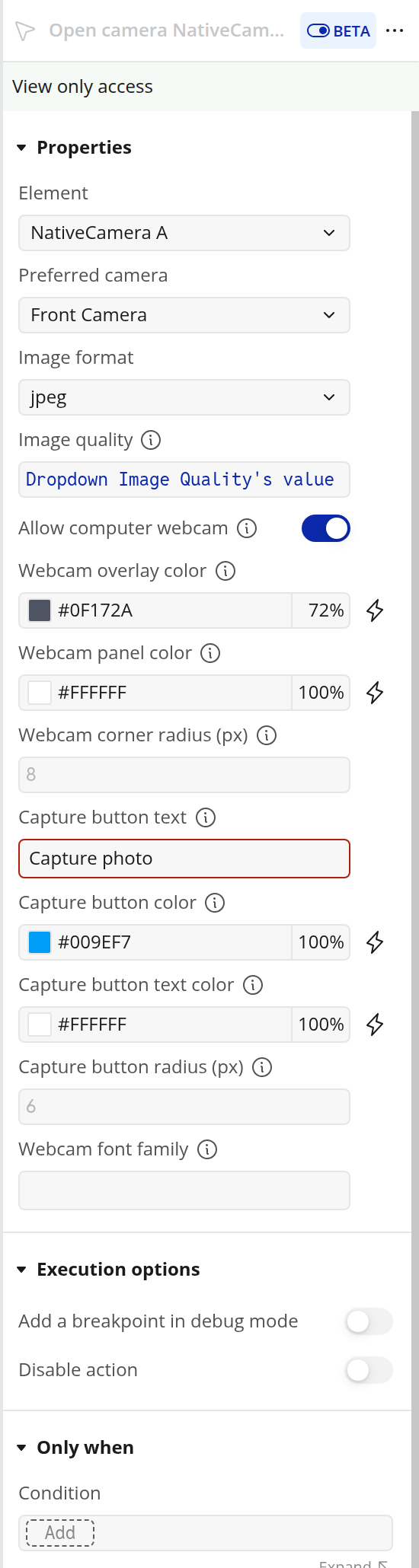
Element: The Native camera element to use.
Preferred camera: Which camera to request. Options are Front Camera and Rear Camera. Default: Front Camera.
Image format: Output format for the compressed image. Options are webp, jpeg, and png. Default: jpeg.
Image quality: Compression quality from 0.1 to 1. Higher values create larger, sharper files. Default: 0.8.
Allow computer webcam: When enabled on desktop browsers that support webcam access, the plugin shows a webcam preview with a capture button instead of opening the file picker. Default: off.
Webcam overlay color: Background color behind the webcam panel. Default: rgba(15, 23, 42, 0.72).
Webcam panel color: Background color of the webcam panel. Default: #ffffff.
Webcam corner radius (px): Corner radius for the webcam panel and video preview. Default: 8.
Capture button text: Text shown on the webcam capture button. Default: Capture photo.
Capture button color: Background color of the webcam capture button. Default: #009ef7.
Capture button text color: Text color of the webcam capture button. Default: #ffffff.
Capture button radius (px): Corner radius of the webcam capture button. Default: 6.
Webcam font family: Optional. Leave blank to use the app's default font. Default: blank.
The webcam preview has one visible control: the capture button. Users can also close the preview by clicking outside the panel or pressing Escape. Safari-style browser behavior may fall back to JPEG when WebP is selected.
Save captured photo
Runs on a Native camera element after a photo has been captured. It uploads the latest compressed image to Bubble storage, publishes Saved image URL, then triggers Photo saved.
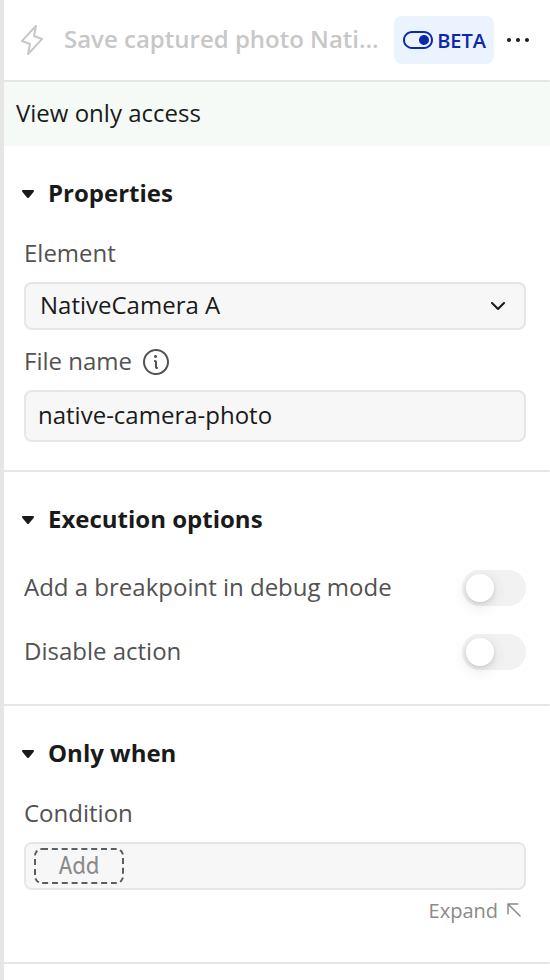
Fields:
Element: The Native camera element to use.
File name: File name to use when uploading the captured image. The plugin adds the image extension.
Download captured photo
Runs on a Native camera element after a photo has been captured. It downloads the latest compressed image in the browser.
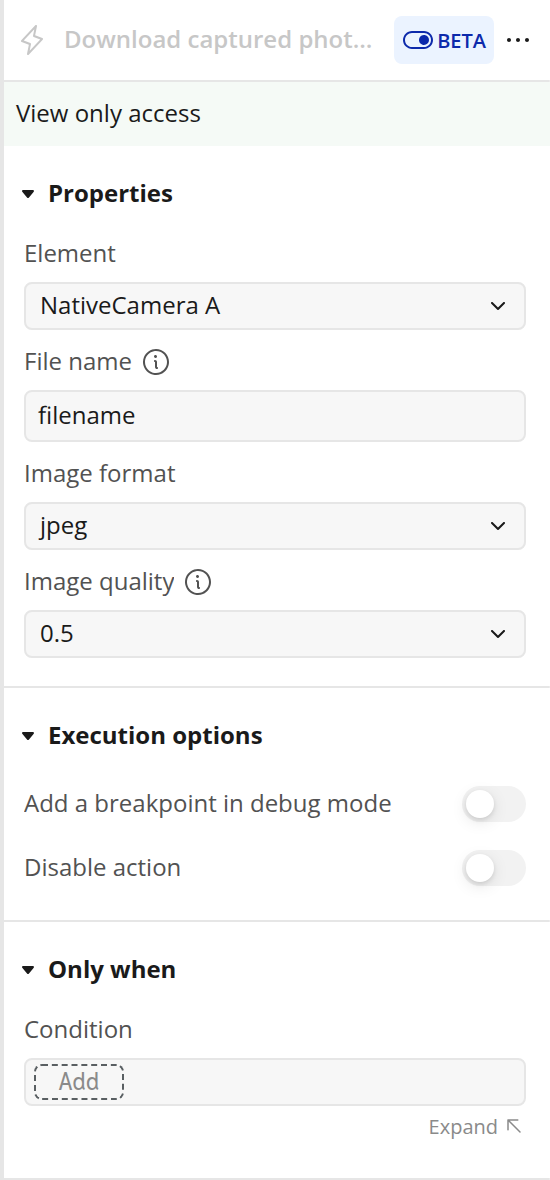
Fields:
Element: The Native camera element to use.
File name: File name to use for the downloaded image. The plugin adds the image extension.
Image format: Legacy field. The actual image format is set by Open camera.
Image quality: Legacy field. The actual compression quality is set by Open camera.
Reset camera
Runs on a Native camera element. It clears the captured image, saved URL, file sizes, error message, and temporary camera input. If the computer webcam preview is open, Reset camera also closes it.
This action has no fields.
Example workflow
To let a user capture and store a profile photo:
Add Native camera to the profile page.
Add a button called Open camera.
In the button workflow, run Open camera and target the Native camera element.
Enable Allow computer webcam if desktop users should take a photo from their webcam.
Add a Photo captured workflow on the Native camera element.
In that event, either show the Preview image state in an image element, run Download captured photo, or run Save captured photo.
Add a Photo saved workflow and save Saved image URL to the user or another database thing.
Troubleshooting
The camera does not open
Check that the workflow targets the correct Native camera element. On mobile, browser camera behavior depends on the user's device and browser permissions. On desktop, enable Allow computer webcam if you want the computer webcam flow.
The webcam preview does not appear on desktop
Make sure Allow computer webcam is enabled. The page must be served over HTTPS, the browser must support webcam access, and the user must allow camera permission. If any of those are missing, the plugin falls back to the image picker.
The saved URL is empty
Run Save captured photo only after Photo captured has fired. Then read Saved image URL after Photo saved fires.
WebP does not download or save as expected
Some browsers use a JPEG fallback for camera captures. Use jpeg when you need the broadest compatibility.
Nothing happens after selecting or capturing an image
Check the Error message state and add a workflow for Camera error so users can see a helpful message.
Limits
Browser camera behavior is controlled by the user's browser and device.
Computer webcam access requires HTTPS and browser permission.
Desktop webcam mode is available only when Allow computer webcam is enabled and the browser supports webcam access.
Image quality affects file size. Higher quality values can create noticeably larger files.
The plugin stores captured previews as Base64 data URLs before upload. Very large images can use more browser memory.