
Better PDF & Screenshot Exports
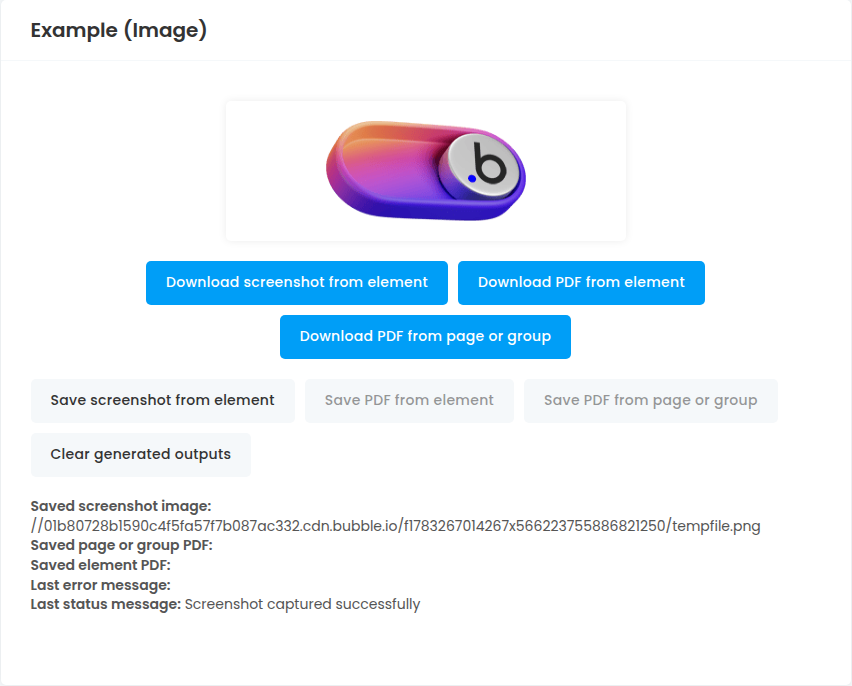
Better PDF & Screenshot Exports helps you create browser-side PDFs and PNG screenshots from Bubble pages, groups, or elements. Use it when users need to download an invoice, save a page as a PDF, or capture a designed section as an image.
Quick start
Install the plugin in your Bubble app.
In Bubble Settings > General, enable the option to expose ID attributes on HTML elements.
Add the
PDF and screenshot generatorelement to the page. Keep it visible; it can be small.Give the page wrapper, group, or element you want to export an ID attribute, such as
invoice_area.Add one of the plugin workflow actions:
Create PDF from page or group,Create PDF from element, orCapture screenshot.Select the
PDF and screenshot generatorelement in the action'sElementfield.Set
Target page or group ID attributeorTarget element ID attributeto the ID attribute you added.Choose whether the action should download the file, save it to Bubble storage, or both.
When saving to Bubble, use the matching saved event to write the generated file to your database.
Element
Add the PDF and screenshot generator element to any page where you want to generate PDFs or screenshots. The element provides the exposed states and events used by the workflow actions.
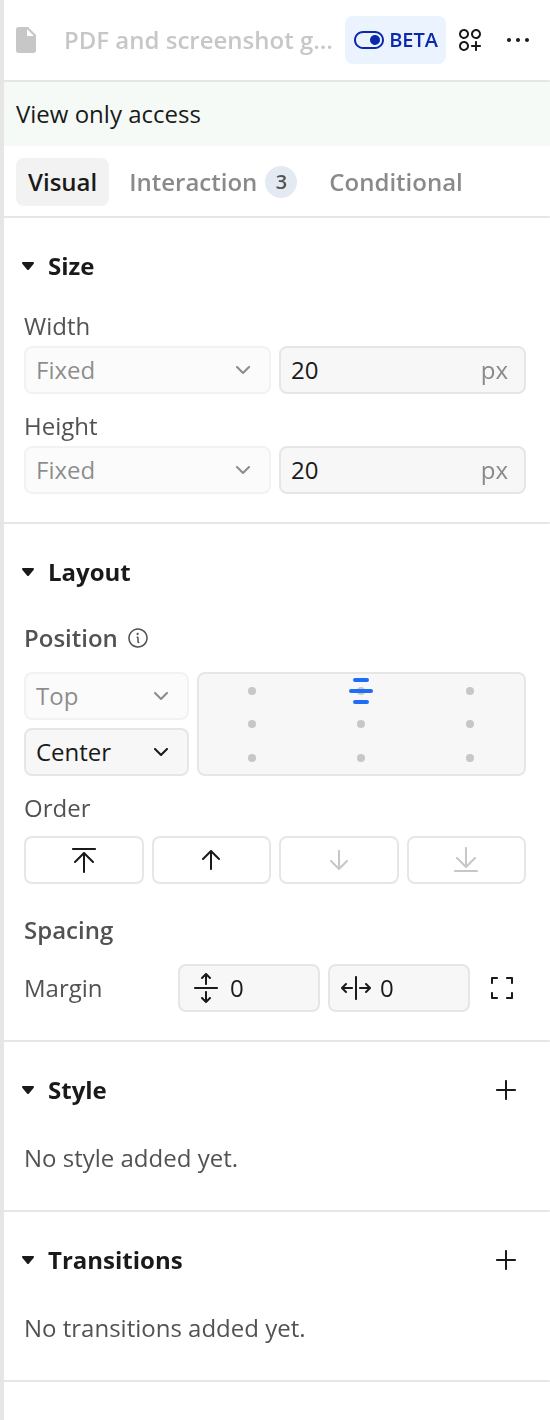
The element has no plugin-specific visual fields. Use Bubble's normal layout controls to keep it on the page. It can be a small visible element because it is only used as the action target and state holder.
Create PDF from page or group
Use Create PDF from page or group when you want to export a page wrapper or large group as a PDF.
Fields
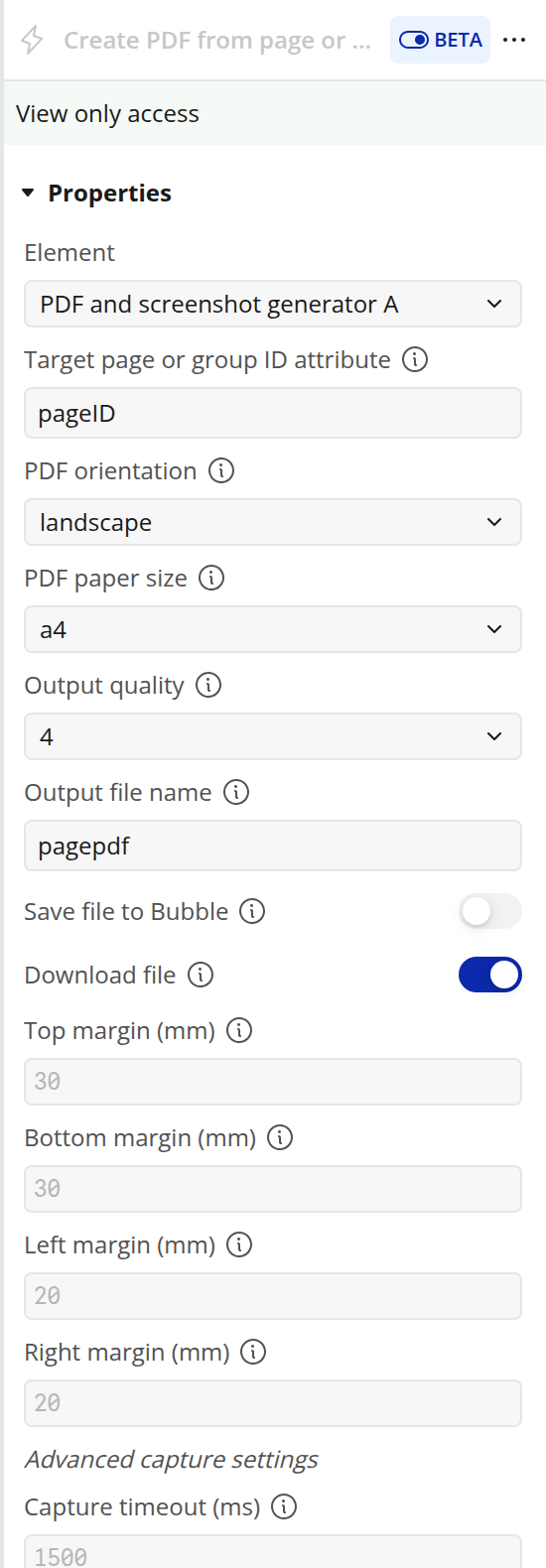
Element: ThePDF and screenshot generatorelement instance that should receive states and events.Target page or group ID attribute: The HTML ID attribute of the page wrapper or group to export as a PDF.PDF orientation:portraitorlandscape. Default:portrait.PDF paper size: The generated PDF paper size. Options:a4,a3,letter. Default:a4.Output quality: Capture quality and file size. Options:2,3,4,5. Default:2.Output file name: The file name to use. The plugin adds.pdfif needed.Save file to Bubble: Saves the PDF to Bubble storage and triggersPage or group PDF savedwhen the file is ready. Default: checked.Download file: Downloads the PDF in the user's browser. Default: checked.Top margin (mm): Top margin for the generated PDF, in millimeters. Default:30.Bottom margin (mm): Bottom margin for the generated PDF, in millimeters. Default:30.Left margin (mm): Left margin for the generated PDF, in millimeters. Default:20.Right margin (mm): Right margin for the generated PDF, in millimeters. Default:20.Capture timeout (ms): How long the browser waits for images before continuing. Default:1500. Set0to wait without a timeout for large pages.
Create PDF from element
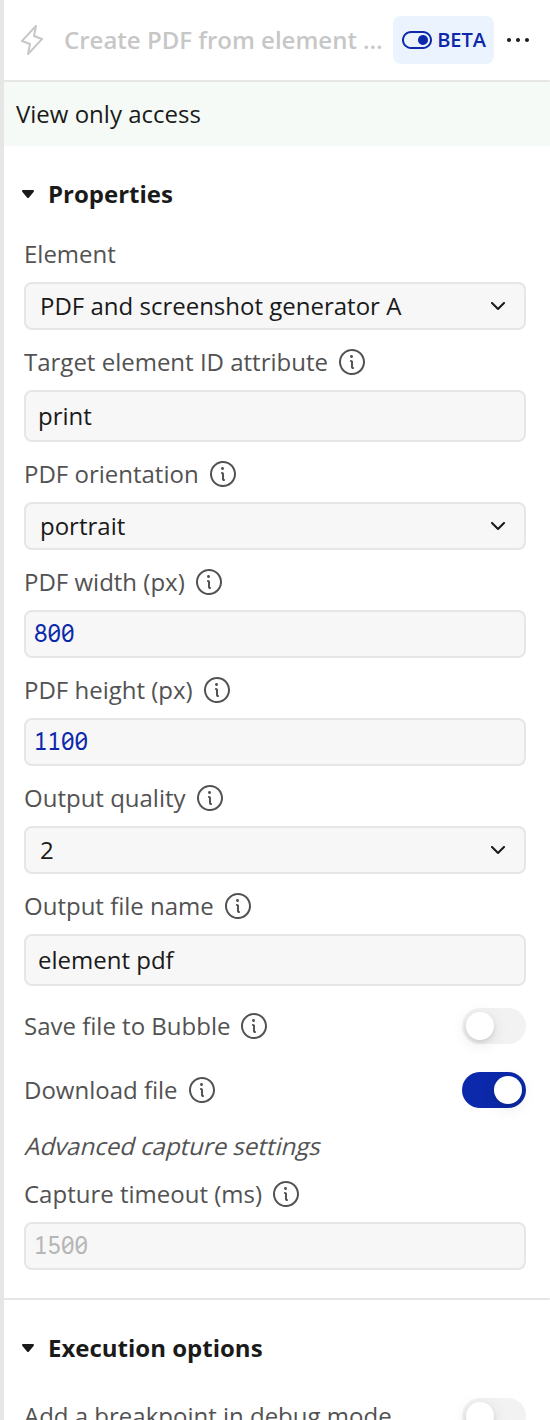
Use Create PDF from element when you want to export one element as a PDF with a specific pixel width and height.
Fields
Element: ThePDF and screenshot generatorelement instance that should receive states and events.Target element ID attribute: The HTML ID attribute of the element to export as a PDF.PDF orientation:portraitorlandscape. Default:portrait.PDF width (px): The generated PDF width in pixels. Match this to the target element width for predictable output.PDF height (px): The generated PDF height in pixels. Match this to the target element height for predictable output.Output quality: Capture quality and file size. Options:2,3,4,5. Default:2.Output file name: The file name to use. The plugin adds.pdfif needed.Save file to Bubble: Saves the PDF to Bubble storage and triggersElement PDF savedwhen the file is ready. Default: checked.Download file: Downloads the PDF in the user's browser. Default: checked.Capture timeout (ms): How long the browser waits for images before continuing. Default:1500. Set0to wait without a timeout for large elements.
Capture screenshot
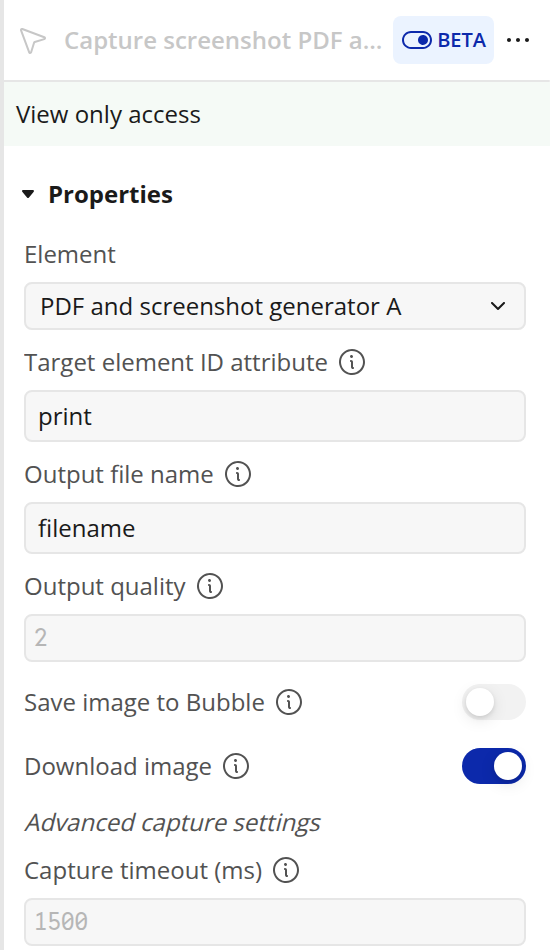
Use Capture screenshot when you want to capture a page section or element as a PNG image.
Fields
Element: ThePDF and screenshot generatorelement instance that should receive states and events.Target element ID attribute: The HTML ID attribute of the element to capture as a PNG image.Output file name: The file name to use. The plugin adds.pngif needed.Output quality: Capture quality and file size. Enter a number from2to5. Default:2.Save image to Bubble: Saves the PNG to Bubble storage and triggersScreenshot savedwhen the image is ready. Default: checked.Download image: Downloads the PNG in the user's browser. Default: checked.Capture timeout (ms): How long the browser waits for images before continuing. Default:1500. Set0to wait without a timeout for large elements.
Clear generated outputs
Use Clear generated outputs to clear the element's saved image, saved PDFs, last error message, and last status message. This action has no fields.
States
Saved screenshot image: The saved PNG image returned byCapture screenshotwhenSave image to Bubbleis enabled.Saved page or group PDF: The saved PDF returned byCreate PDF from page or groupwhenSave file to Bubbleis enabled.Saved element PDF: The saved PDF returned byCreate PDF from elementwhenSave file to Bubbleis enabled.Last error message: The latest error message returned by a PDF or screenshot action.Last status message: The latest progress or completion message returned by a PDF or screenshot action.
Events
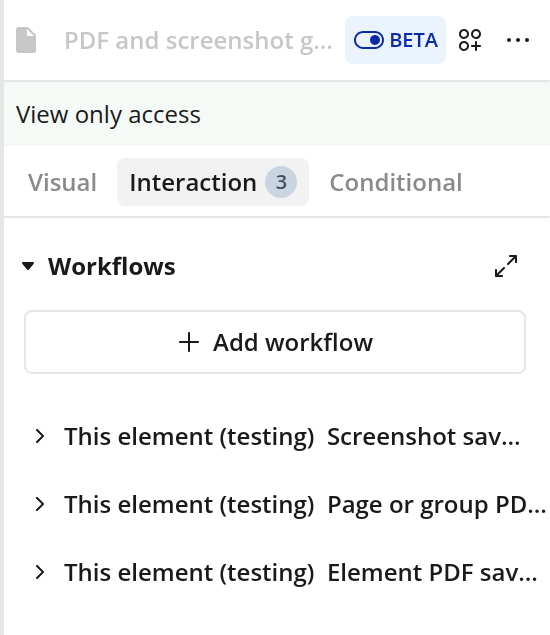
Screenshot saved: Triggered after a screenshot has been saved to Bubble storage andSaved screenshot imageis ready.Page or group PDF saved: Triggered after a page or group PDF has been saved to Bubble storage andSaved page or group PDFis ready.Element PDF saved: Triggered after an element PDF has been saved to Bubble storage andSaved element PDFis ready.
Example workflow
Save a screenshot to your database:
Add a group to the page and give it an ID attribute, such as
receipt_preview.Add the
PDF and screenshot generatorelement to the same page.Add a button workflow and run
Capture screenshot.Set
Elementto thePDF and screenshot generatorelement.Set
Target element ID attributetoreceipt_preview.Set
Output file nameto a useful value, such asreceipt.Turn on
Save image to Bubble.Turn off
Download imageif the user should not receive a local download.Add a workflow for the
Screenshot savedevent.In that event, create or update your database thing with the element's
Saved screenshot imagestate.
Troubleshooting
Nothing is generated:
Make sure the target ID attribute exactly matches
Target page or group ID attributeorTarget element ID attribute.Make sure the target page, group, or element is visible when the action runs.
Make sure the
PDF and screenshot generatorelement itself is visible on the page.Check
Last error messagefor details.
The file is generated but the saved state is empty:
Turn on
Save file to BubbleorSave image to Bubble.Use the matching saved event before writing the file to the database.
Read
Saved screenshot image,Saved page or group PDF, orSaved element PDFfrom the same plugin element that ran the action.
The PDF or image is missing content:
Use JPG or PNG image elements where possible.
Avoid relying on SVGs, icon fonts, images inside HTML elements, or images embedded inside rich text.
Make sure external images are public and can be loaded by the browser.
The output is cropped or the page break is not right:
For
Create PDF from element, setPDF width (px)andPDF height (px)to match the target element.For
Create PDF from page or group, adjust the PDF margins and paper size.For large or slow content, increase
Capture timeout (ms)or set it to0.
The page jumps to the top when the action runs:
The plugin scrolls to the top before capture so page and element coordinates are consistent.
Limits
This plugin runs in the browser, so it is web-only.
The target page, group, or element must exist in the page DOM and be visible when the action runs.
Browser capture cannot perfectly render every Bubble element or third-party embed.
Very large pages and multi-page PDFs may need tuning and may not produce perfect page breaks.
Saving to Bubble storage only happens when the save option is enabled.