
Better Timer / Stopwatch / Countdown
Better Timer / Stopwatch / Countdown adds elapsed timers, stopwatches, and countdowns to Bubble apps.
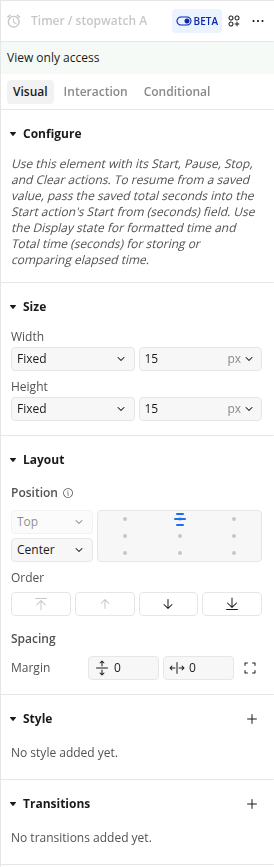
Use the Timer / stopwatch element when you need elapsed time, a stopwatch, or a timer that can auto-stop after a number of seconds. Use the Countdown element when you need to count down to a date and time, or calculate the difference between two dates.
Quick start
Add the Timer / stopwatch or Countdown element to the page.
Add workflow actions for that element.
Display the element states in text elements, conditions, or workflows.
Use the plugin events when the timer stops, auto-stops, or the countdown reaches zero.
Timer / stopwatch
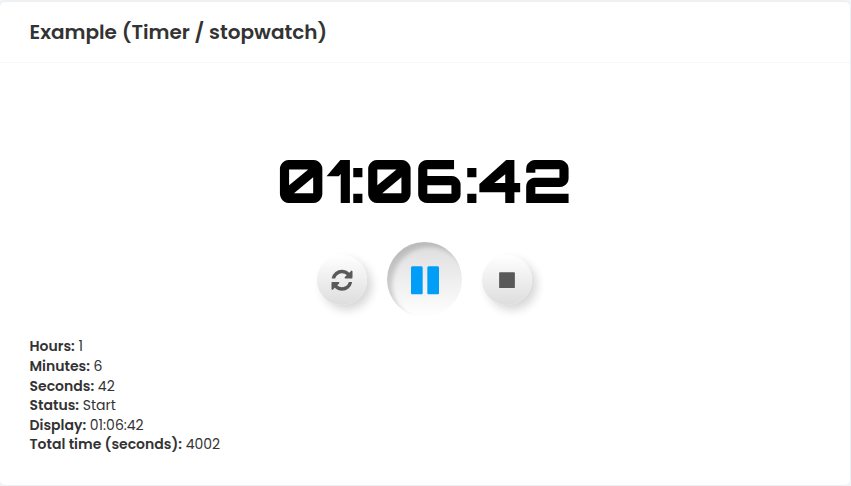
Use Timer / stopwatch for elapsed time. It publishes formatted HH:MM:SS text and split values for hours, minutes, seconds, and total elapsed seconds.
Start timer
Starts or resumes the timer.
Fields:
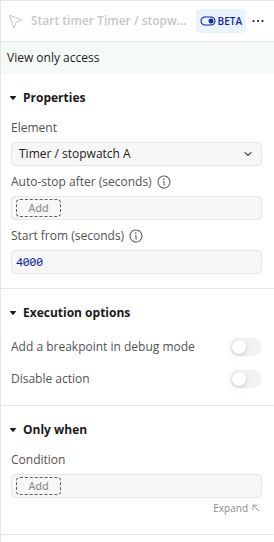
Element: choose the Timer / stopwatch element on the page.
Auto-stop after (seconds): optional. Enter the total elapsed seconds where the timer should stop automatically. Use 60 for one minute, 3600 for one hour, or 86400 for one day. When this value is reached, the Auto-stop reached event runs.
Start from (seconds): optional. Starts the timer from a saved elapsed value. Use this when resuming a timer from your database.
Other timer actions
Pause timer: pauses the timer without resetting the elapsed time.
Stop timer: stops the timer and runs the Timer stopped event.
Clear timer: clears the timer and resets all timer states to zero.
Timer states
Hours: elapsed whole hours.
Minutes: elapsed minutes within the current hour.
Seconds: elapsed seconds within the current minute.
Status: current timer status. Possible values are None, Start, Stop, Pause, or Clear.
Display: formatted elapsed time as HH:MM:SS.
Total time (seconds): total elapsed time in seconds.
Timer events
Timer stopped: runs after Stop timer is used.
Auto-stop reached: runs when the timer reaches the Start timer action's auto-stop value.
Countdown
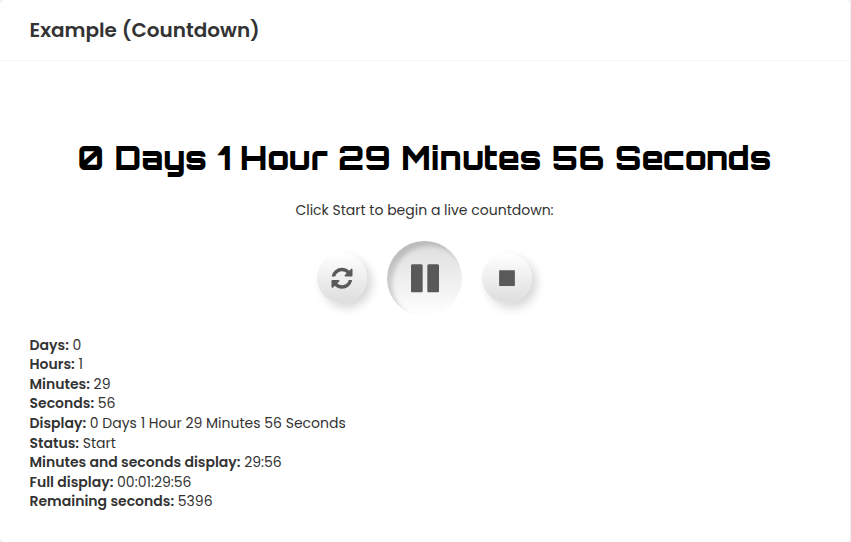
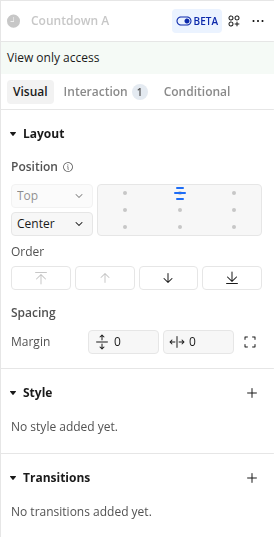
Use Countdown for time remaining until an end date. It can update every second for a live countdown, or calculate the difference between two dates once.
Start or resume countdown
Starts the countdown or resumes it from a paused state.
Fields:
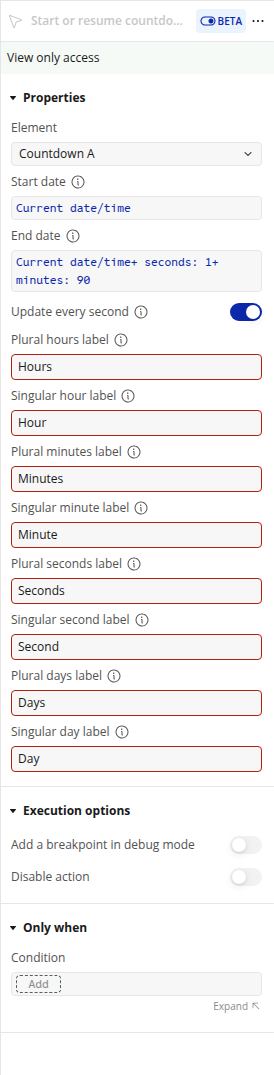
Element: choose the Countdown element on the page.
Start date: the date and time to calculate from. Use Current date/time for a live countdown.
End date: the date and time the countdown should end.
Update every second: enabled by default. When enabled, the countdown updates every second until it ends. When disabled, it calculates the time between Start date and End date once.
Plural hours label: text used when the remaining hour value is plural. Default: Hours.
Singular hour label: text used when the remaining hour value is singular. Default: Hour.
Plural minutes label: text used when the remaining minute value is plural. Default: Minutes.
Singular minute label: text used when the remaining minute value is singular. Default: Minute.
Plural seconds label: text used when the remaining second value is plural. Default: Seconds.
Singular second label: text used when the remaining second value is singular. Default: Second.
Plural days label: text used when the remaining day value is plural. Default: Days.
Singular day label: text used when the remaining day value is singular. Default: Day.
Stop countdown
Stops the countdown. It can also clear the displayed values.
Fields:
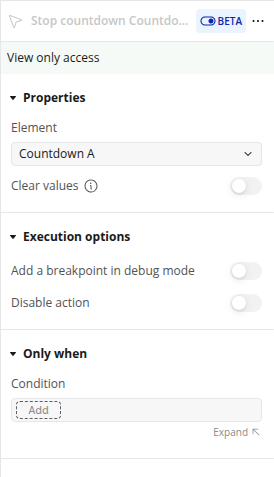
Element: choose the Countdown element on the page.
Clear values: disabled by default. When enabled, all countdown states reset to zero after stopping.
Other countdown actions
Pause countdown: pauses the countdown without clearing the remaining time.
Clear countdown: clears the countdown and resets all countdown states to zero.
Countdown states
Days: whole days remaining.
Hours: hours remaining within the current day.
Minutes: minutes remaining within the current hour.
Seconds: seconds remaining within the current minute.
Display with labels: remaining time with labels, for example 0 days 0 hours 00 minutes 00 seconds.
Status: current countdown status. Possible values are Start, Stop, Clear, Ended, or Pause.
Minutes and seconds display: remaining minutes and seconds, formatted as MM:SS.
Full display: remaining days, hours, minutes, and seconds, formatted as DD:HH:MM:SS.
Remaining seconds: total remaining time in seconds.
Countdown events
Countdown ended: runs when the countdown reaches zero. For compatibility, Stop countdown also runs this event.
Examples
Resume a saved timer
Save the Timer / stopwatch element's Total time (seconds) state to your database.
When the user returns, run Start timer.
Set Start from (seconds) to the saved value.
Run a countdown until a deadline
Add a Countdown element to the page.
Run Start or resume countdown.
Set Start date to Current date/time.
Set End date to the deadline.
Display the Display with labels state in a text element.
Troubleshooting
If the timer does not start, check that the workflow action targets the correct Timer / stopwatch element.
If the countdown immediately ends, check that End date is after Start date.
If values do not update live, make sure Update every second is enabled on Start or resume countdown.
If your app needs to continue a workflow when a countdown is stopped manually, use the Countdown ended event. Stop countdown runs that event for compatibility with existing apps.