
Better Lightbox Image Gallery
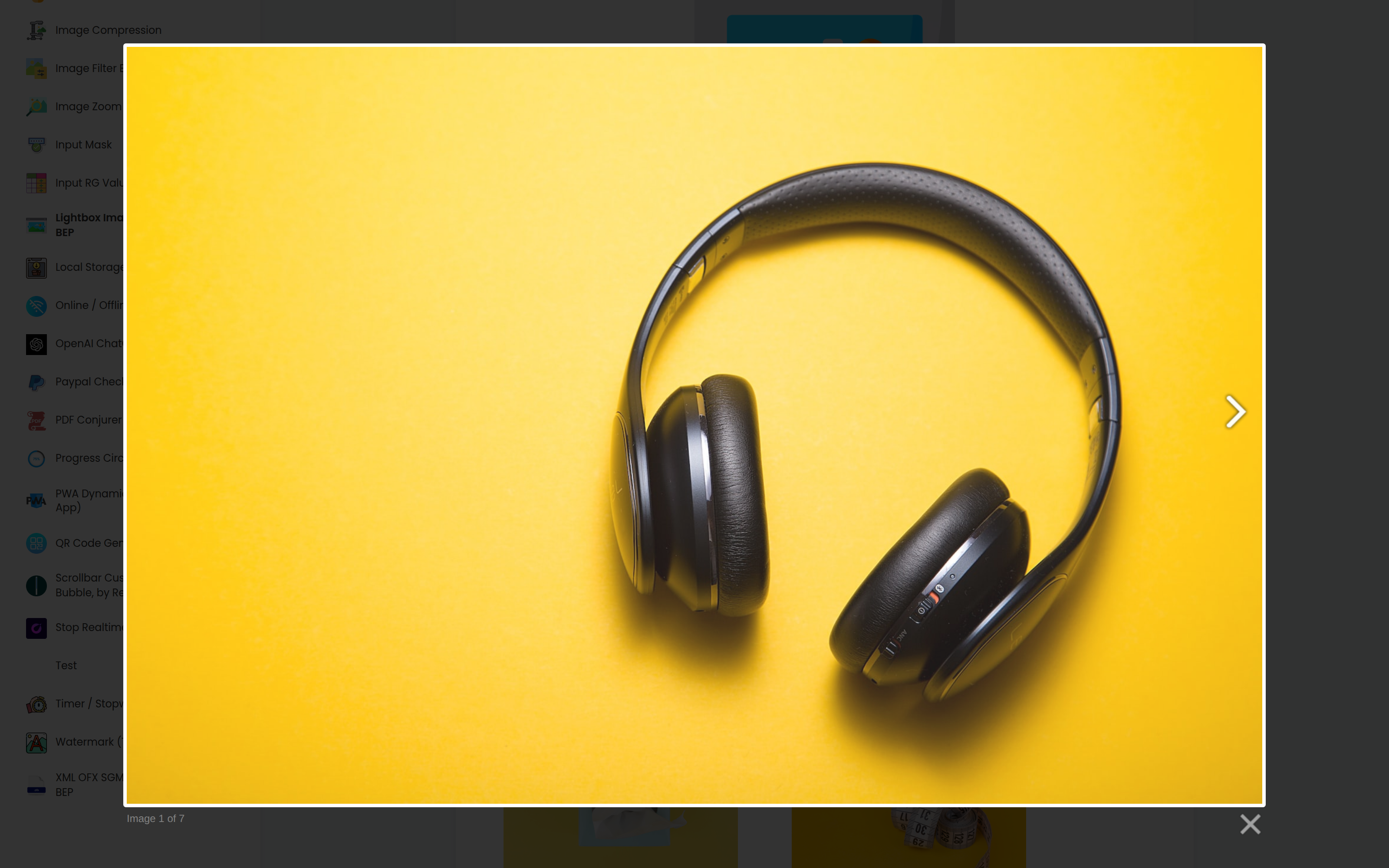
Better Lightbox Image Gallery opens Bubble images in a full-page overlay. Use it for a single enlarged image or connect several images into a gallery with next and previous controls.
Quick start
In Settings → General, enable Bubble's option to expose an ID attribute on elements.
Add an ID attribute to the Bubble Image you want to open, such as
product-photo.Add a Lightbox · BEP element to the same page.
Set Image Element ID to the Image element's ID attribute.
Set Gallery ID to a name for the image or gallery, such as
product-gallery.Preview the page and click the image.
The Lightbox element does not need a workflow or conditional. It can be kept small and placed anywhere on the page.
Element reference
Add one Lightbox · BEP element for each Bubble Image that should open in a Lightbox.
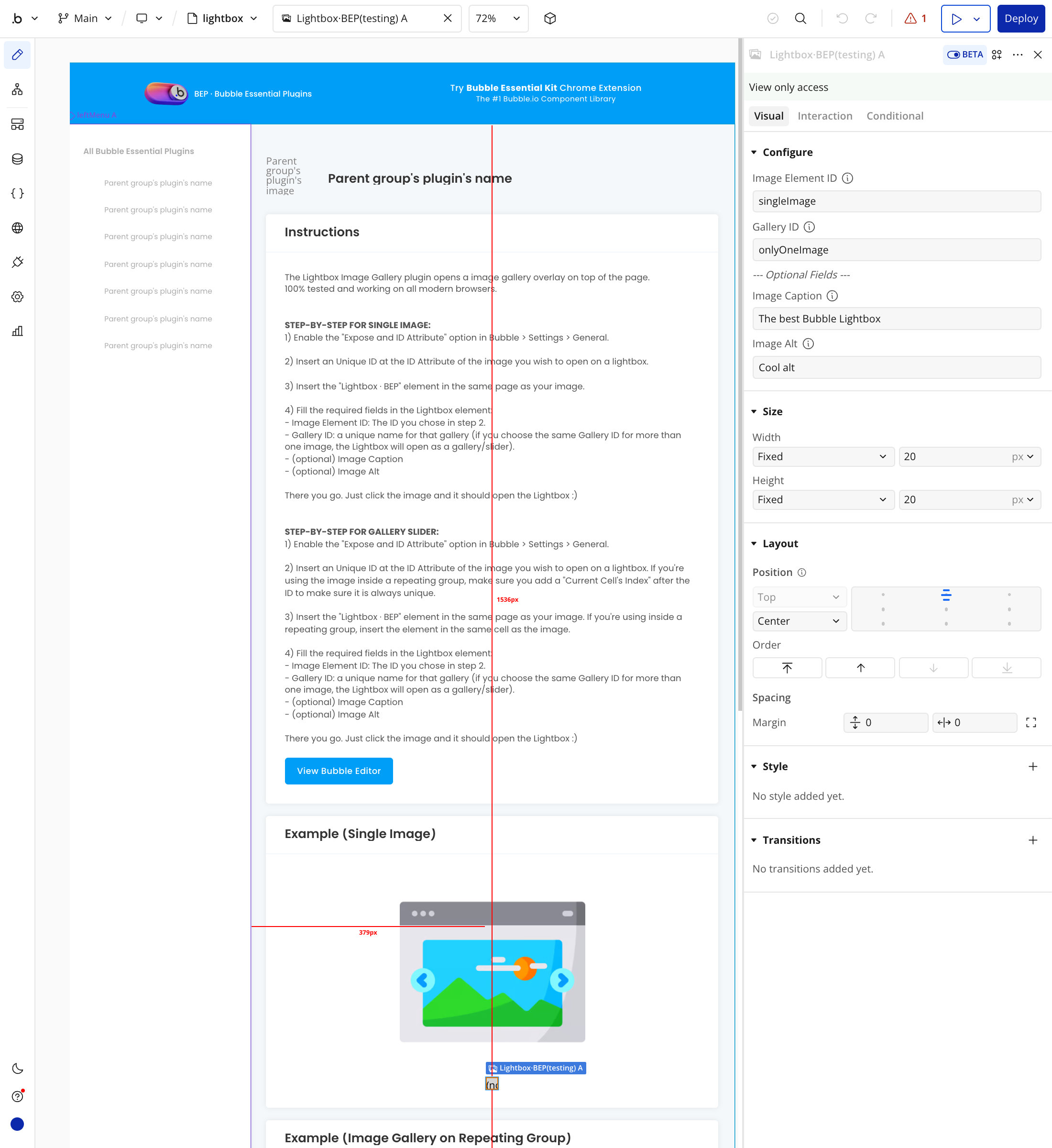
Image Element ID
The ID attribute of the Bubble Image this Lightbox element controls. This accepts text or a dynamic text expression. It has no default and must exactly match the Image element's ID attribute.
Use a unique ID for every rendered image. For example, use product-photo for one image or gallery-image-Current cell's index inside a repeating group.
Gallery ID
The name used to decide which images belong to the same gallery. This accepts text or a dynamic text expression. It has no default.
Use a unique value when the image should open by itself. Give several Lightbox elements the same Gallery ID when their images should share next and previous controls.
Image Caption
Optional text shown below the enlarged image. This accepts text or a dynamic text expression. The default is blank.
Image Alt
Optional alternative text for the enlarged image. This accepts text or a dynamic text expression. The default is blank. Use a concise description of the image for accessibility.
Show one image
For a single-image Lightbox:
Set the Bubble Image's ID attribute to a unique value, such as
main-product-photo.Add one Lightbox · BEP element.
Set Image Element ID to
main-product-photo.Set Gallery ID to another unique value, such as
main-product-lightbox.Optionally set Image Caption and Image Alt.
Clicking the image opens it without next and previous gallery controls.
Create a gallery
Add one Lightbox · BEP element for each Bubble Image. Each image needs a different ID attribute, while every Lightbox element uses the same Gallery ID.
For example:
Bubble Image ID
gallery-image-1→ Image Element IDgallery-image-1→ Gallery IDproduct-galleryBubble Image ID
gallery-image-2→ Image Element IDgallery-image-2→ Gallery IDproduct-galleryBubble Image ID
gallery-image-3→ Image Element IDgallery-image-3→ Gallery IDproduct-gallery
Clicking any image opens the gallery at that image. The Lightbox reads the current image URL when it is clicked, so a Bubble Image that changes dynamically opens its latest image.
Use a repeating group
Place both the Bubble Image and Lightbox · BEP element inside the repeating-group cell.
Give the Bubble Image a dynamic, unique ID such as
gallery-image-Current cell's index.Set Image Element ID on the Lightbox element to the same dynamic value.
Set Gallery ID to one shared value, such as
vehicle-gallery.Optionally use fields from the current cell for Image Caption and Image Alt.
Bubble initially renders only the repeating-group cells needed on screen. Only rendered cells can join the open gallery. More images can join after their cells render.
Empty Bubble image placeholders are ignored. This prevents blank repeating-group cells from becoming empty slides.
Troubleshooting
Nothing opens
Check that Bubble's ID-attribute option is enabled in Settings → General. Then confirm Image Element ID exactly matches the Image element's ID attribute, including capital letters, spaces, and any dynamic suffix.
Also make sure the Image and its Lightbox · BEP element are both rendered on the page.
Only one image appears
Every image needs its own Lightbox · BEP element, and each of those elements must use exactly the same Gallery ID. The Image element IDs must still be unique.
Blank repeating-group cells appear
Make sure each populated cell gets a unique Image ID and a matching Image Element ID. Empty Bubble placeholders are excluded automatically, but a real image field that resolves to an inaccessible or broken URL can still fail to display.
IDs are duplicated or do not match
Duplicate Image IDs can connect the wrong Lightbox element to an image. In repeating groups, include a value that is unique for each rendered cell, such as the current cell's index or the thing's unique ID. Use that exact same expression in Image Element ID.
Limits
Add one Lightbox · BEP element per Bubble Image.
Only repeating-group cells currently rendered by Bubble can join a gallery.
The visitor's browser must have JavaScript enabled.
Image URLs must be accessible to the visitor's browser.
No setup changes or migration are required when updating from an earlier plugin version. Existing Image IDs and Gallery IDs continue to work.